
Publishing Setup
Connecting WordPress for Auto-Publishing
Last Updated: July 15, 2026
Security Guarantee
We connect to your website using built-in WordPress core Application Passwords. This grants publishing access only and keeps your primary Admin login password strictly private and completely secure.
Follow these steps to generate a secure credential and safely link your site.
Step-by-Step Guide to Generate an Application Password
- Log into your WordPress admin dashboard (typically at `yoursite.com/wp-admin`).
- Hover over the Users menu on the left sidebar navigation drawer and select Profile (or your profile page).
- Scroll down to the bottom of the Profile editing screen until you find the Application Passwords section.
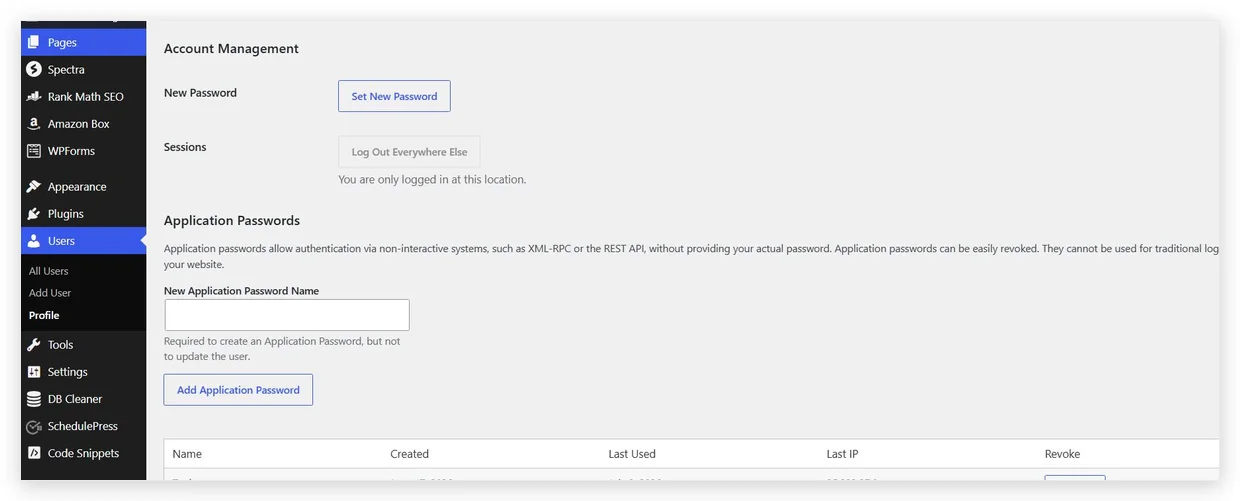
Figure 5.1: Locating the Application Passwords form in your WP Profile.
- Enter a descriptive name for the connection (e.g. *"ClusterWriter Publishing Engine"*) in the New Application Password Name input field.
- Click the Add New Application Password button.
- WordPress will immediately generate a 24-character string spaced in blocks of 4 (e.g. `xxxx xxxx xxxx xxxx xxxx xxxx`).
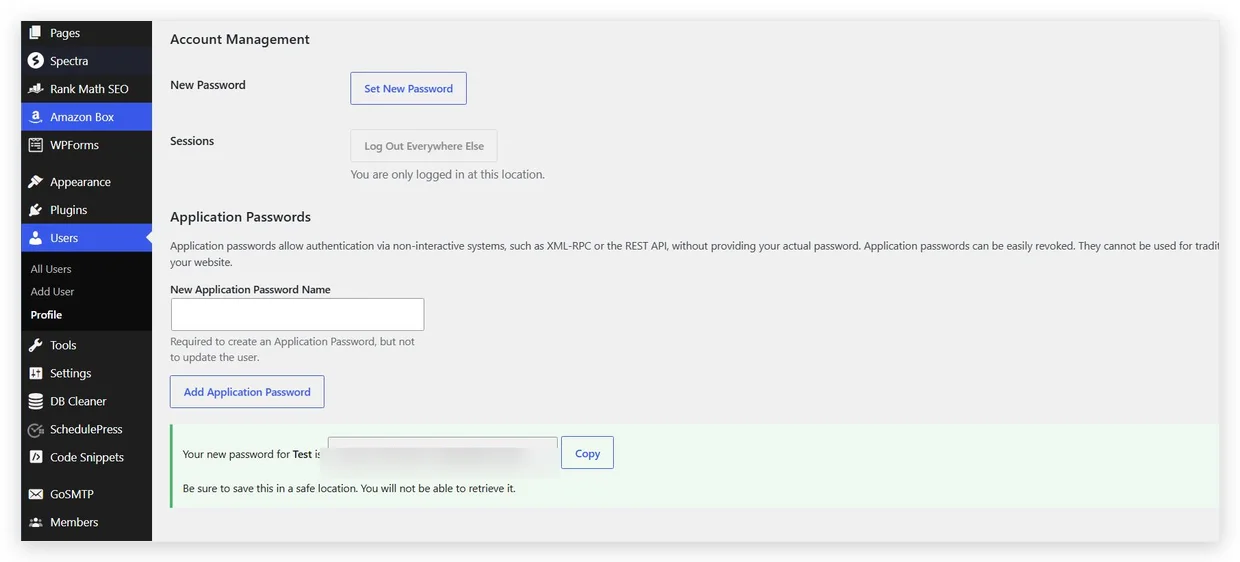
Figure 5.2: Copying the generated 24-character key string.
Important WarningCopy the generated 24-character password string immediately. Once you navigate away or close the page, WordPress will mask it, and you will not be able to retrieve it again. If you lose it, you must revoke the credential and create a new one.
- Copy the 24-character password string to your clipboard.
- Go to your ClusterWriter Dashboard Settings, locate the WordPress Sites configuration form, and click Add WordPress Site. Paste the 24-character string along with your Website URL and Username.